How to Turn Photos Into Doodles
Turning a photo into a doodle used to mean opening Photoshop and clicking through filters that gave you a fake, plastic-looking sketch. The result rarely looked hand-drawn, and you couldn't do anything with it after. It was a static image, end of the line.
Grovetracks does this differently. When you trace a photo here, you get editable strokes: actual lines you can recolor, erase, drag onto another canvas, and remix into something completely new. The trace isn't the finish line. It's the starting point.
This guide walks through the whole flow, end to end, in about five minutes.
What you'll need
- A photo. Anything with clear edges works: a leaf, a coffee cup, a pet, a piece of fruit, a textured wall. Skip faces (privacy + uncanny) and very flat or low-contrast images.
- A browser. That's it. No account needed to trace; you'll only need to sign in if you want to publish or remix.
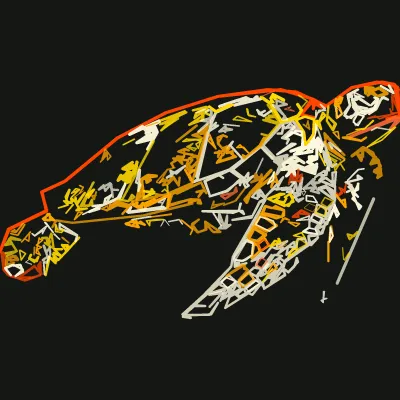
That's what a finished trace looks like: not a filter effect, but a set of strokes you can still recolor and rearrange. Here's how to get there from your own photo.
Step 1: Pick a photo with good edge contrast
The trace pipeline uses computer vision (specifically, edge detection) to find the contours of your subject and convert them into stroke paths. This isn't generative AI. The strokes are derived directly from what's in your photo, which means:
- High-contrast photos trace cleanly
- Low-contrast or evenly-lit photos lose detail
- Photos with busy backgrounds can produce noisy stroke counts
Some examples that work especially well:
- A single leaf against a plain background
- A coffee cup on a wooden table, side-lit
- A pet against a contrasting wall
- Bark, weathered wood, peeled paint, fabric weaves
If your photo isn't tracing well, try a different one before tweaking settings. The detail slider can only do so much with a flat source.
Step 2: Drop the photo into the trace tool
Open grovetracks.com and click Create, then Trace photo. You'll land at /create/trace.
Drop your photo into the upload zone, or click to file-pick. The photo uploads, runs through a quick content classifier (to filter out anything that shouldn't be doodled), and then the trace begins. You'll see the strokes form over the next few seconds.
Step 3: Tune the detail slider
This is the part most people skip. Don't.
The detail slider controls how many strokes the trace produces. Drag it lower for a cleaner, more doodle-like result with fewer lines. Drag it higher to capture more nuance from the source photo.
For most photos, the sweet spot is around 40-60. Below 20 you lose the subject. Above 80 you're picking up texture noise that makes the doodle look busy. Play with it. The preview updates live.
You'll also see an optional background removal button. Use it when your subject is well-separated from the background and you want a clean cutout. Skip it when the background is part of the composition (a textured wall, a patterned fabric).
Step 4: Use in Canvas to edit further
Click the Use in Canvas → button. The traced strokes load onto a fresh canvas where you can:
- Recolor individual strokes or apply a palette to the whole doodle
- Erase lines you don't want
- Add new strokes on top: annotate, decorate, expand
- Drag the whole doodle (or any part of it) onto another canvas and use it as an ingredient in something else
This is where photo-to-doodle becomes interesting. The trace gives you a starting point that nobody else has. From there, every choice you make moves it further away from the original photo and closer to your own thing.
Step 5: Publish or remix
When you're done editing, click Publish. Your doodle joins the gallery with a permanent URL, a share card, and a place in the remix chain.
That last part is what makes Grovetracks different from every other photo-to-doodle tool. When you publish, other artists can branch from your doodle: start a new composition with yours as the seed. And every branch links back to its parent automatically. The credit chain happens for free.
You can also branch from anyone else's doodle the same way. Open a composition you like, click Branch, and a new canvas opens with their strokes already on it, ready for you to edit. See the guide on how to remix digital art online for the full walkthrough of branching and lineage.
What to do next
Once you've traced one photo, try these:
- Trace three different photos of the same subject (a leaf at three angles, three coffee cups, three plants from your kitchen). The compositions will all be different but related.
- Remix someone else's traced doodle. Browse the gallery, find a trace you like, branch from it, and recolor it into something completely your own.
- Combine a trace with a hand-drawn doodle. Drop your traced strokes onto a canvas where you've already started drawing freehand. The two styles play nicely together.
- Arrange several traces into a collage. Trace a few related photos and lay the results out on one canvas. The guide on making a digital art collage online covers the arranging tools.
Still weighing whether tracing is the right starting point for what you're trying to make? Our guide to choosing an online drawing tool compares photo-to-doodle against the flat-image filters other tools offer.
A note on "AI"
The trace pipeline is not AI. It's classical computer vision: the same edge-detection techniques that have been around for decades, applied carefully to produce clean, editable strokes. Generative AI image tools build pictures from text prompts; what Grovetracks does is the opposite. It takes your photo and pulls structure out of it.
This matters because the trace result belongs to you. There's no model output to worry about, no prompt-to-image randomness, no licensing question about where the strokes came from. They came from your photo.
Frequently asked questions
Is this free? Yes. Grovetracks is free to use. There's no signup required to trace a photo and edit the result. You'll need an account to publish a doodle so it can join the gallery and the remix chain.
Does this use AI? No. The trace pipeline uses classical computer vision (edge detection), not generative AI. The strokes are derived directly from your photo's contours.
What photos work best? Photos with clear edges and good contrast trace best. Leaves, plants, simple objects, and textured surfaces produce the most striking doodles. Faces and very busy scenes can be harder to interpret.
Can I recolor the doodle after tracing? Yes. Once your trace is in the canvas, you can recolor any stroke individually or apply a palette to the whole composition.
What's the difference between photo-to-doodle and photo-to-sketch? Photo-to-sketch typically aims for a realistic pencil-drawing look. Photo-to-doodle gives you simpler, more playful stroke paths that are meant to be edited, remixed, and used as starting points, not finished artwork.
Ready to try it? Trace a photo on Grovetracks →