How to Choose an Online Drawing Tool in 2026
Search "best online drawing tool" and you'll get a dozen rankings that all disagree with each other. The more useful question, the one this guide actually answers, is how to choose an online drawing tool that fits what you're trying to do.
Because there is no single best one. A professional illustrator inking a comic, a kid who wants to draw a dinosaur, a team sketching a wireframe together, and someone who wants to turn a vacation photo into wall art all need different tools. A ranking that crowns one winner is just telling three of those four people to use the wrong thing.
So this isn't a ranking. It's a framework. We'll walk through the criteria that actually separate these tools from each other, then apply those criteria to four common things people are trying to do. You'll come out the other side able to pick for yourself, and able to ignore the next listicle entirely.
One honest disclosure first: we make Grovetracks, which is one of the tools in this guide. We're not going to pretend otherwise, and we're not going to put it on a podium. It does two specific things well, and there are entire categories where it's the wrong choice. We'll be just as specific about those. A buyer's guide is only worth reading if it's honest about the thing its author built.
The criteria that actually matter
Before you can match a tool to a job, you have to know what you're even comparing. These are the seven things that genuinely change your experience day to day. Most "reviews" cover two or three of them and skip the rest.
Does it run in your browser?
This is the first fork in the road. Some of the best drawing software in the world (Krita is the obvious example) is desktop-first. Krita is free, open-source, and genuinely professional-grade, but it's a program you download and install, not a website you open. That's not a flaw, it's a trade-off. Desktop apps get more raw power, steadier performance on big canvases, and better tablet pressure support. Browser tools get instant access from any machine, nothing to install or update, and easy share-by-link. If a true online drawing tool is a hard requirement for you (a Chromebook, a locked-down work laptop, a borrowed computer), that requirement alone eliminates a chunk of the field before you compare anything else. It's also worth a quick thought about your input device (mouse, trackpad, drawing tablet, touchscreen), since a few tools feel built for one and only tolerate the others. Settle the browser-or-desktop question first; it's the cheapest way to shrink the list.
Is the free tier actually usable?
"Free" is the most abused word in this category. There's a real difference between a free drawing app you can rely on (Krita, Excalidraw, Kleki, Sketchpad, and Grovetracks all have free tiers you can use indefinitely) and a tool that's "free to try," which means a watermark, a save limit, or a seven-day countdown. Adobe's web tools fall in the second group: there's no permanent free tier, just a trial. Canva and BeFunky sit in the middle: genuinely free to use, but their strongest features sit behind a paid plan. None of this is dishonest. You just need to know whether the online drawing tool you're eyeing is free for keeps or free for a week before you spend an afternoon learning it. It's also worth checking what the free tier costs you in other ways: ads, an export cap, a watermark on whatever you save.
How much signup friction is there before you can start?
There's a real cost to the gap between "I want to draw something" and "I am drawing something." Some tools drop you straight onto a canvas: Kleki, Sketchpad, Excalidraw, and Grovetracks all let you start drawing with no account at all. Others want an email, a password, and sometimes a verification click before you see a single pixel. Signup friction matters most in two cases: when you're just trying a tool to see if you like it, and when you're sending it to someone else (a kid, a collaborator, a friend) who will quietly give up if the first screen is a registration form. If you'll use a tool every day, a one-time signup is nothing. If you're sampling, it's everything.
What is the tool actually built for?
Every drawing tool has a center of gravity (the thing its makers obsess over), and everything else is a side feature. Krita's center is painting and illustration. Excalidraw's is fast, rough diagrams and wireframes. Photoshop's is photo work and professional compositing. Grovetracks' is social, collaborative doodling and turning photos into remixable strokes. A tool's side features are usually fine; its center is usually excellent. The mistake is picking a tool for a side feature and then wondering why the whole thing feels slightly awkward. When you read a feature list, ask which item the company would defend to the death. That's what it's for. Excalidraw can place freehand strokes, but it isn't a painting tool; Krita can rough out a quick diagram, but that isn't where it shines. Match a tool's center to your actual job and most of your decision is already made.
What does "collaboration" mean here?
"Collaborative" is printed on almost every tool's marketing page, and it means at least three different things. There's real-time co-editing: multiple cursors on one canvas at the same time, like a shared document. Excalidraw and Canva both do this well. There's asynchronous remixing: you build on a drawing someone already finished, and the tool tracks who came before you. This is what Grovetracks is built around, and it keeps the lineage automatically. And there's "collaboration" that's really just export-and-email: the tool is solo, but you can send a file. All three are legitimate, and they are not interchangeable. Decide whether you need to draw with people in the same moment, draw on top of what people made before you, or just share a finished result. If it's the second one, our guide to remixing digital art online walks through what branching and lineage actually look like.
Photo conversion: what do you actually get out?
Plenty of tools will turn a photo into something that looks drawn. The question nobody asks is: what do you get back? Most photo-to-art features (BeFunky, Canva, the old Photoshop filters) give you a flat image. A picture that looks sketched, exported as a PNG, and that's the end of it. You can't edit the lines because there are no lines, just pixels. A smaller set of tools give you editable output: actual stroke paths you can recolor, move, delete, and build on. Grovetracks works this way. It traces a photo into editable strokes, which you can also arrange alongside other pieces in a digital art collage. The flat-image route is faster and perfectly fine if you just want a finished picture. The editable route matters if the photo is a starting point rather than the destination. Know which one you want before you pick a tool.
Export and ownership
Eventually you'll want your work out of the tool, so check two things before you're invested. First, export: can you get a real file (PNG, SVG, the native format), and is it gated behind a paid plan? Some tools export freely; some make export the thing you pay for. The export gotcha bites hardest with design suites: you can do all the work for free and then discover that the high-resolution download or the transparent background is the paid feature. Second, ownership: who owns what you make, and on AI-enabled tools, was anything in the tool trained on other people's work without consent? For anything you might publish, sell, or simply care about, read the actual terms once. It's ten boring minutes that can save you a genuine headache later. This criterion is the easiest one to skip and the worst one to get wrong.
Matching the framework to what you're doing
Now point those criteria at what you're actually doing. Here are four common jobs and where to start looking for each (not a ranking, just a starting point).
If you want professional illustration
This is the clearest case, and it's one where Grovetracks is the wrong tool, so let's get that out of the way first. If you're doing finished, professional-grade illustration (comics, concept art, detailed digital painting, paid client work), you want Krita or Adobe. Krita is the standout free option: a full professional painting application, open-source, with the brush engine, layer support, and tablet pressure handling that serious illustration demands. Its one catch, from the criteria above, is that it's desktop-first: you install it, you don't open it in a tab. Adobe's Photoshop and Fresco are the paid industry standard; Fresco in particular is built for drawing and painting rather than photo work, and both run on the web and iPad as well as desktop. The honest summary: for professional illustration, install Krita if your budget is zero, pay for Adobe if it isn't, and don't use a browser doodling tool for finished client work, Grovetracks included. It isn't built for this, and it won't pretend to be. If your work pays your rent or builds your portfolio, the tool is not the place to compromise.
If you just want to doodle casually
Maybe you don't have a project at all. You just want to draw something: kill twenty minutes, sketch an idea, let a kid make a mess. If you just want a free doodle maker online for an afternoon, friction is the only criterion that really matters, and the best tools are the ones with no signup and no learning curve. Kleki is a lovely no-frills painting tool: open the page, pick a brush, draw. Sketchpad is similar, a little more featured, ad-supported but free. Excalidraw works here too if your doodle leans more shapes-and-lines than painterly. None of these ask for an account or make you learn anything. This is also a place Grovetracks fits, with one specific twist: if a blank canvas is the thing that stops you (and for a lot of people it is), Grovetracks lets you start from a traced photo or branch off someone else's doodle, so there's always something already on the page to react to. That's not better than a blank canvas, it's just different. If you like the blank page, Kleki or Sketchpad are the simplest path. If the blank page is the enemy, starting from something already there can help. Either way, casual doodling shouldn't cost anything or require a manual.
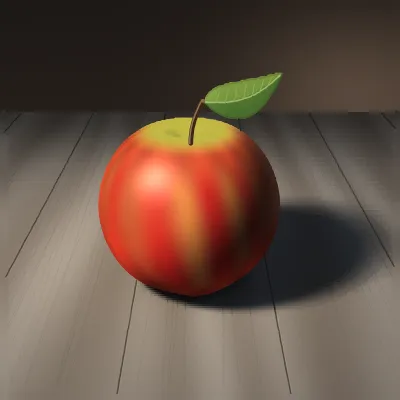
Something this simple is still a real doodle. The tool that gets you from nothing to an apple on a table in twenty minutes, with no account and no manual, is the right tool for casual drawing.
If you want to draw with other people
This is where "collaboration" earns the definition from the criteria above, because the right tool depends entirely on how you want to draw together. If you mean real-time (everyone on one canvas at the same moment, cursors moving live), Excalidraw is the best free option, and it's excellent at it: share a link, and people are drawing together instantly. Grovetracks does not do this. There's no live multi-cursor co-drawing, and if that's your need, Excalidraw is your answer. But "drawing with other people" also describes something Excalidraw doesn't do: building on what someone already made. That's the other model of collaboration, and it's what Grovetracks is built around. You branch from a finished doodle, make it yours, and publish it. Every branch then keeps its lineage automatically, so the credit chain back to the original artist happens without anyone managing it. It's collaboration spread across time instead of happening in one live session. So: if you want the best collaborative drawing app for a live session, that's Excalidraw; if you want one built around remixing and visible lineage, that's the slice Grovetracks built for. You can browse the Grovetracks gallery to see what those remix chains actually look like, or read more about what Grovetracks can do. Pick based on which kind of "together" you mean.
If you want to turn a photo into something
Start by deciding what "something" is, because the tools split hard here. If you want a finished image (a photo that looks like a sketch or a painting, ready to download and post), BeFunky and Canva both apply one-click photo-to-art effects and hand you a flat image. That's the fast path, and if the picture is the destination, it's the right path. But if the photo is a starting point (if you want to recolor it, edit the lines, combine it with other drawings, or let other people remix it), a flat image is a dead end, because there's nothing left to edit. That's the gap Grovetracks fills: it traces a photo into editable strokes rather than a flat picture. And to be precise about how, since this gets misdescribed constantly: it is not AI. There's no model, no prompt, no generated output. It's classical computer vision (edge detection) that finds the contours in your photo and converts them into actual stroke paths. The strokes come straight out of your image. If you want to see the whole flow, we wrote a full walkthrough on how to turn photos into doodles, or you can just trace a photo into editable strokes and see what comes out. Flat image for a finished result; editable strokes for a starting point.
Compare the tools at a glance
Here's the whole landscape in one view. This table doesn't rank anything and there's no winner's column. It lays the attributes out side by side so you can match them against your own job. Every entry is a real, current tool you can use today. Find the column that matters most for what you're doing and read down it.
| Tool | Free tier | Built for | Collaboration | Photo-to-doodle | Signup to start |
|---|---|---|---|---|---|
| Grovetracks | Yes, full | Social/collaborative doodling | Async remixing + lineage | Yes (editable strokes) | No |
| Krita | Yes, full | Professional painting | Solo | No | No (desktop install) |
| Adobe Photoshop / Fresco | Trial only | Professional painting & photo work | Limited | No | Yes |
| Excalidraw | Yes, full | Sketches & diagrams | Real-time co-editing | No | No |
| Kleki | Yes, full | Quick no-frills painting | Solo | No | No |
| Sketchpad | Yes, ad-supported | Casual drawing | Solo | No | No |
| BeFunky | Yes, limited | Photo effects & editing | Solo | Yes (flat image) | No to try |
| Canva | Yes, limited | Design suite + photo effects | Real-time co-editing | Yes (flat image) | Yes |
One column to read carefully: "Photo-to-doodle." "Flat image" and "editable strokes" both get marketed as "turn your photo into art," but they are not the same product. One hands you a finished file, the other hands you something you can keep working on.
How to choose an online drawing tool you'll actually use
Here's the whole framework in four steps.
Name the job first. Not "I want to draw"; that's too vague to decide on. "I want to ink a comic." "I want to doodle with my kid on a rainy afternoon." "I want my team to sketch a wireframe together." "I want to turn last summer's photos into something I can remix." The job is the input to every other decision.
Check the two or three criteria that matter for that job. Not all seven. Most jobs only hinge on a few. Professional illustration lives or dies on what the tool is built for and its export quality. Casual doodling is all about friction and genuinely free access. Collaboration is entirely about which definition of the word you mean. Find your two or three and ignore the rest.
Try two tools, not eight. Once the criteria narrow the field, you'll usually be left with two real candidates. Open both. Spend fifteen minutes in each. You'll know. Trying all eight is how you end up using none of them.
Then just pick. The best online drawing tool is not the one with the longest feature list. It's the one you'll actually open again next week. A slightly less powerful tool you enjoy beats a more powerful one you avoid, every time.
And if the job you named was collaborative, remix-style doodling or turning photos into something editable, that's the specific slice Grovetracks was built for. If it was something else, one of the other tools here is your better starting point. That's the honest answer, and it's the entire reason to use a framework instead of a ranking.
Frequently asked questions
What is the best free drawing tool for collaboration? For real-time co-editing on a shared canvas, Excalidraw is the best free option. For collaborating by remixing (building on someone else's drawing rather than drawing alongside them), Grovetracks is purpose-built: it's free, every remix keeps its lineage automatically, and you can start without an account.
Are online drawing tools actually free, or just free trials? It varies. Krita, Excalidraw, Kleki, Sketchpad, and Grovetracks have genuinely free tiers you can use indefinitely. Canva and BeFunky are free with paid upgrades for their strongest features. Adobe's web tools are trial-based. There's no permanent free tier.
What is the best online drawing tool for beginners? For an absolute beginner who just wants to draw something, Kleki or Sketchpad are the easiest starting points: no signup, no learning curve. If you'd rather not face a blank canvas at all, Grovetracks lets you start from a traced photo or someone else's doodle, so there's always something already on the page.
Can you turn a photo into a drawing online for free? Yes. BeFunky and Canva apply one-click photo-to-sketch effects that produce a finished image to download. Grovetracks does it differently. It traces your photo into editable strokes you can recolor, edit, and remix. See our guide on how to turn photos into doodles for the full walkthrough.
Does Grovetracks use AI to trace photos? No. Grovetracks uses classical computer vision (edge detection) to convert a photo's contours into stroke paths. It is not generative AI. The strokes come directly from your photo, so the result is structurally derived from your image rather than generated from a prompt.
Which online drawing tool is best for professional artists? For professional illustration, Krita is the best free choice and Adobe Photoshop and Fresco are the paid industry standards. Grovetracks isn't built for finished professional artwork. It's built for casual, social doodling and for turning photos into remixable strokes.
A framework beats a ranking because the right tool is personal. It depends on your job, your constraints, and what you'll actually keep using. Run the four steps, try two tools, and pick. And if the job you landed on is collaborative, remix-friendly doodling, or turning a photo into editable strokes, that's the corner of this landscape we built.
Ready to try collaborative doodling? Start with a photo on Grovetracks →